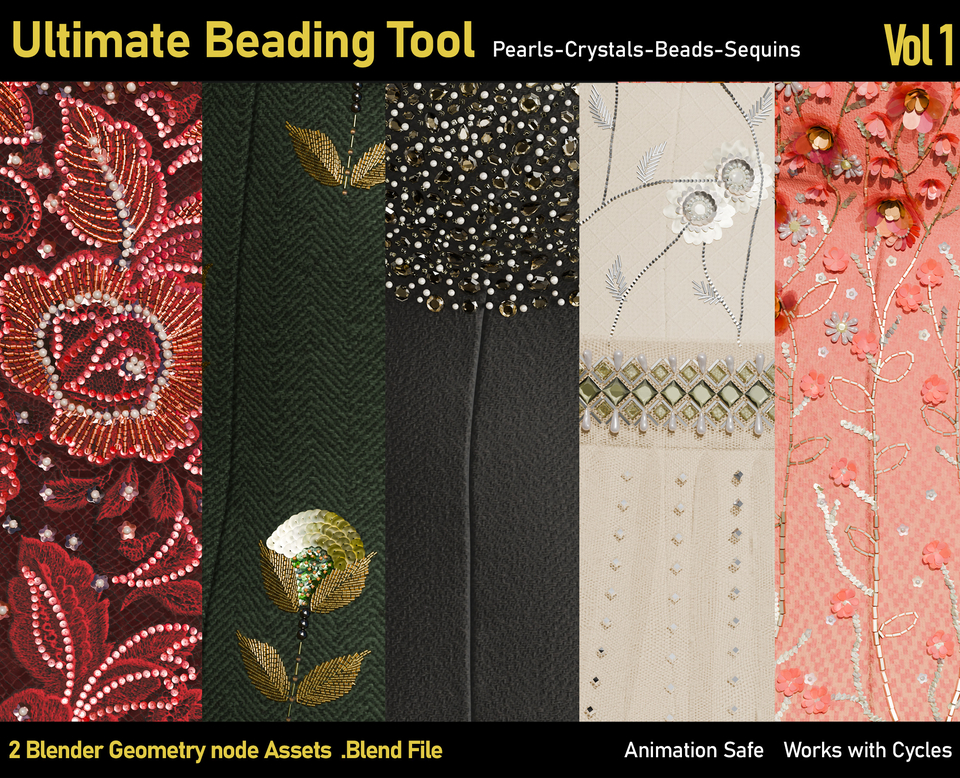
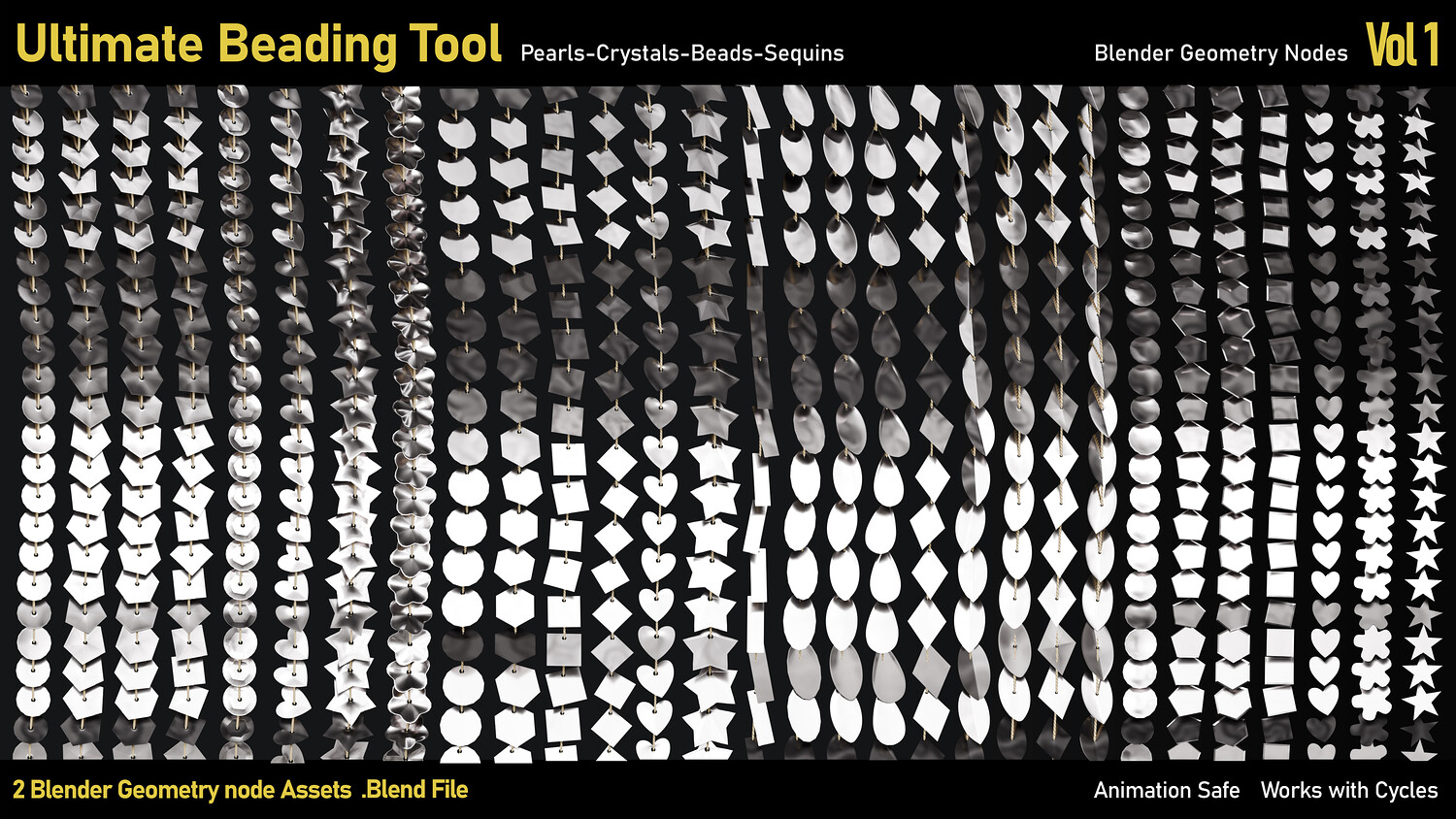
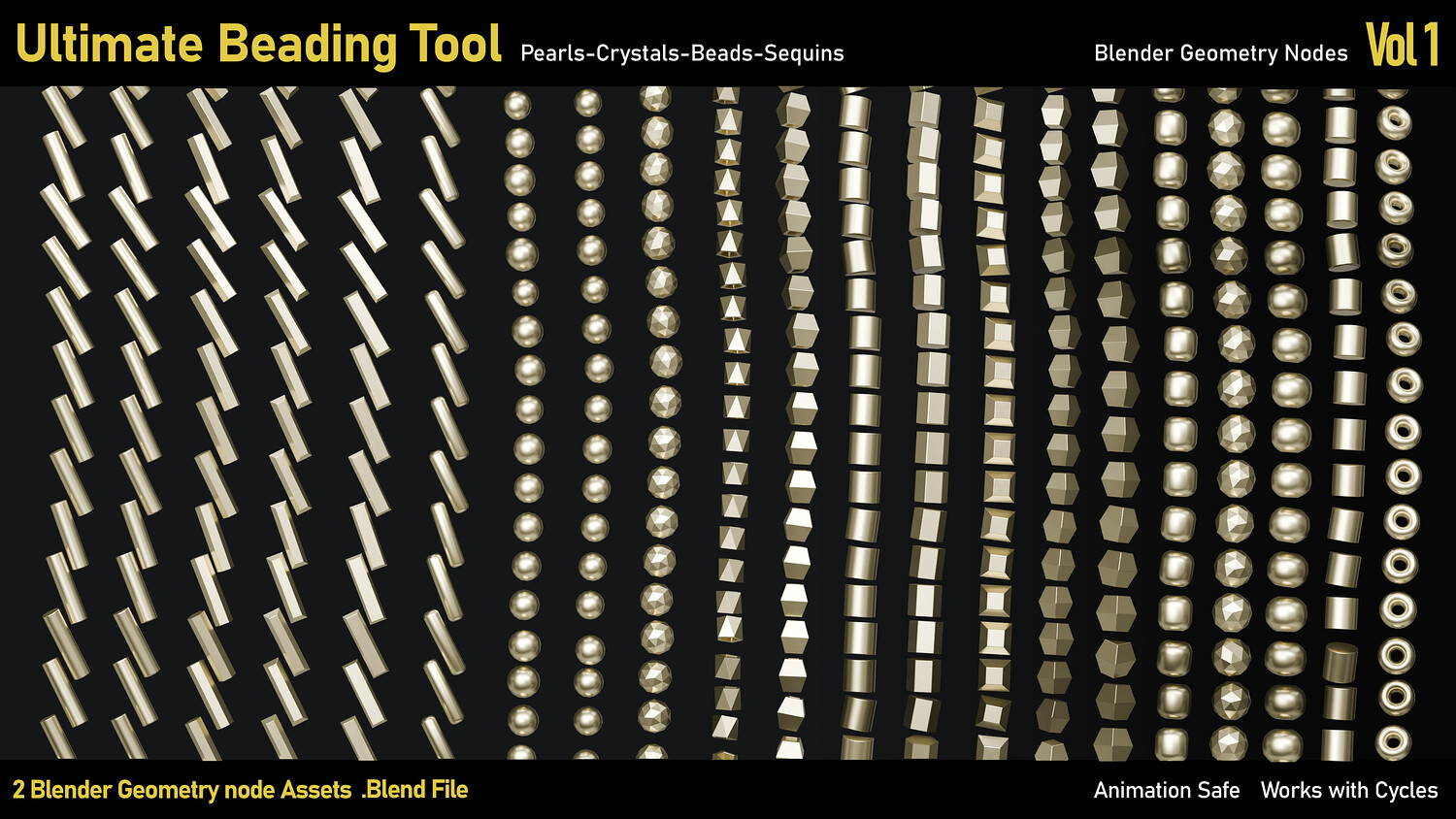
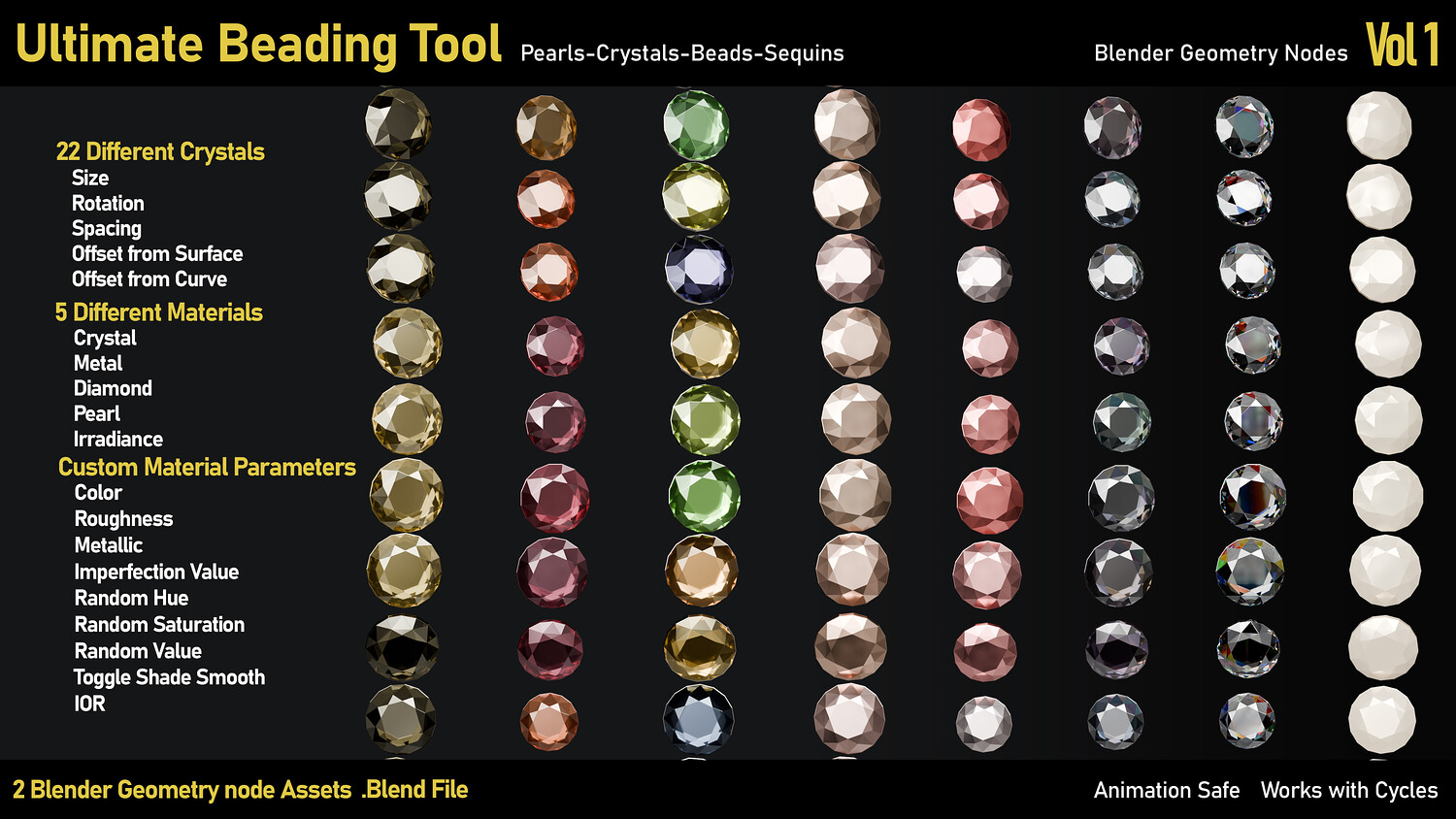
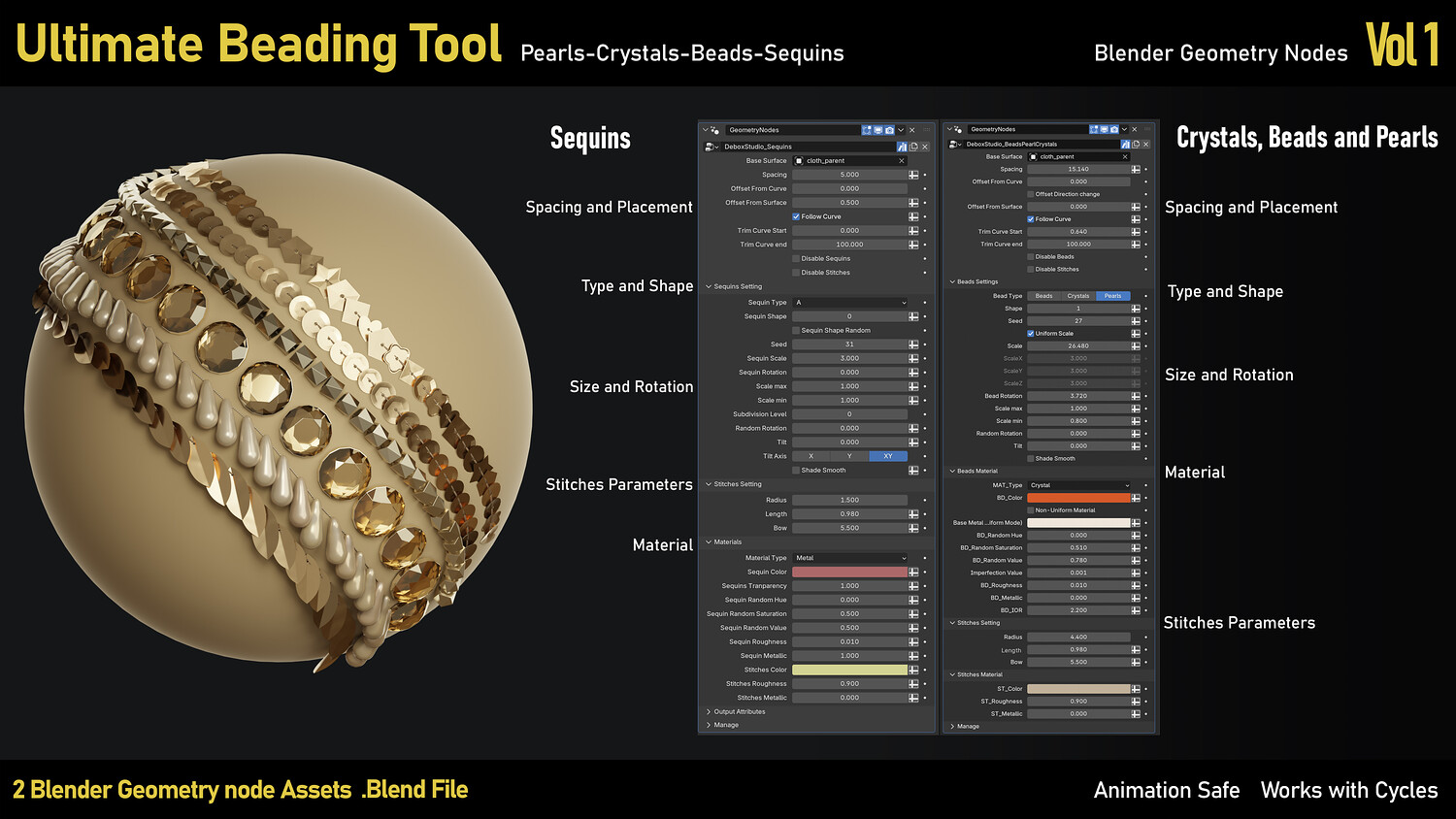
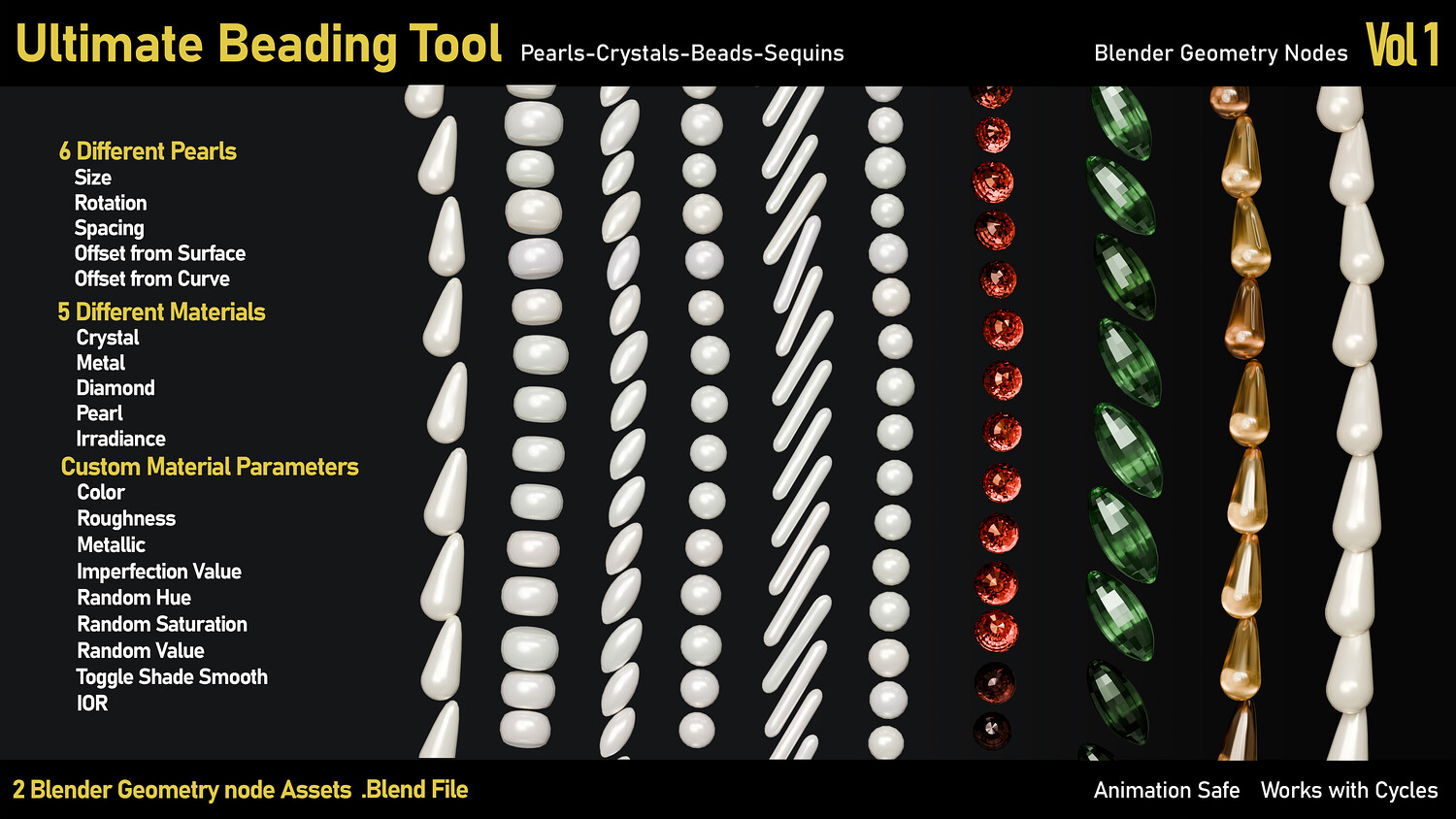
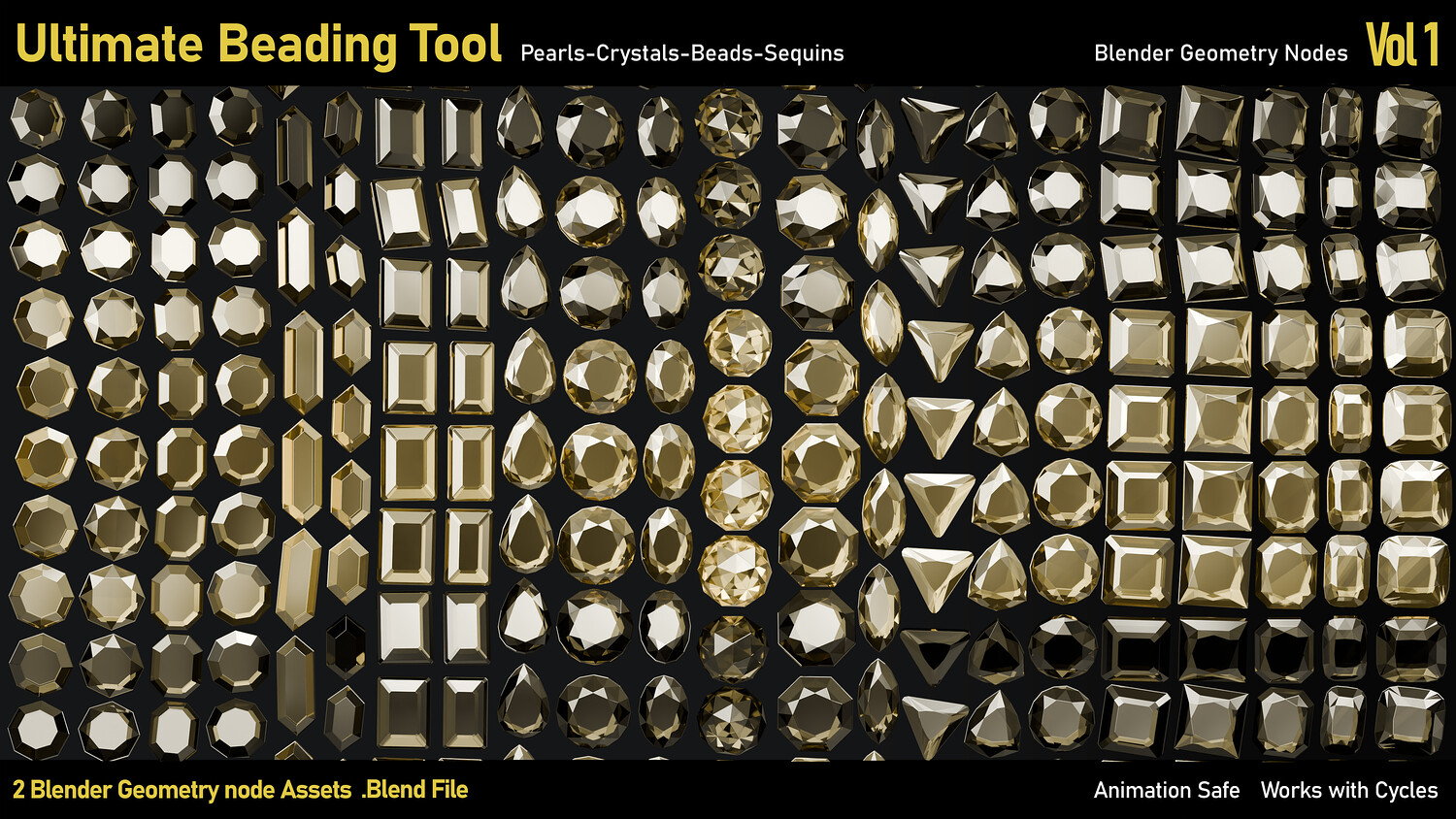
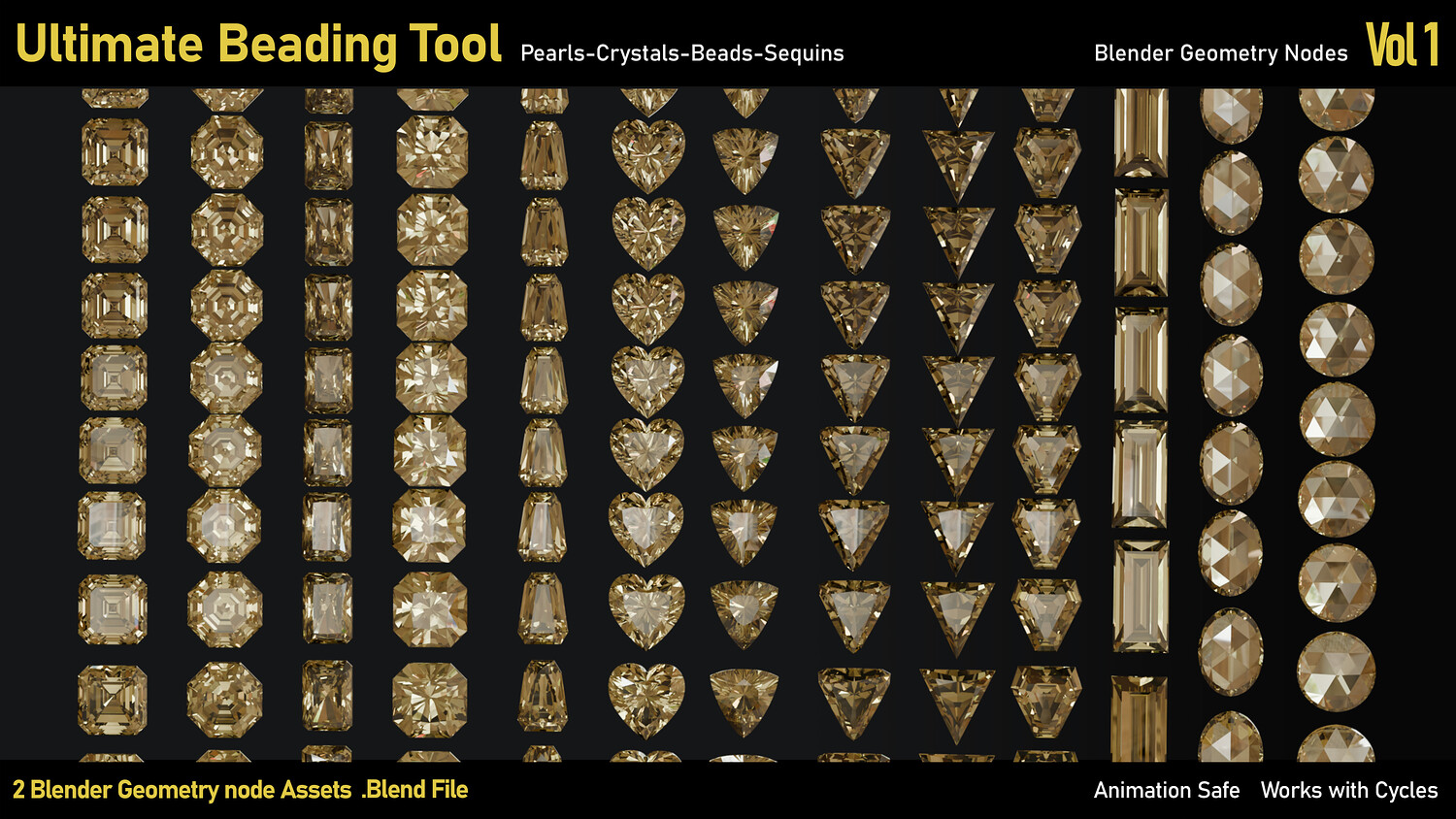
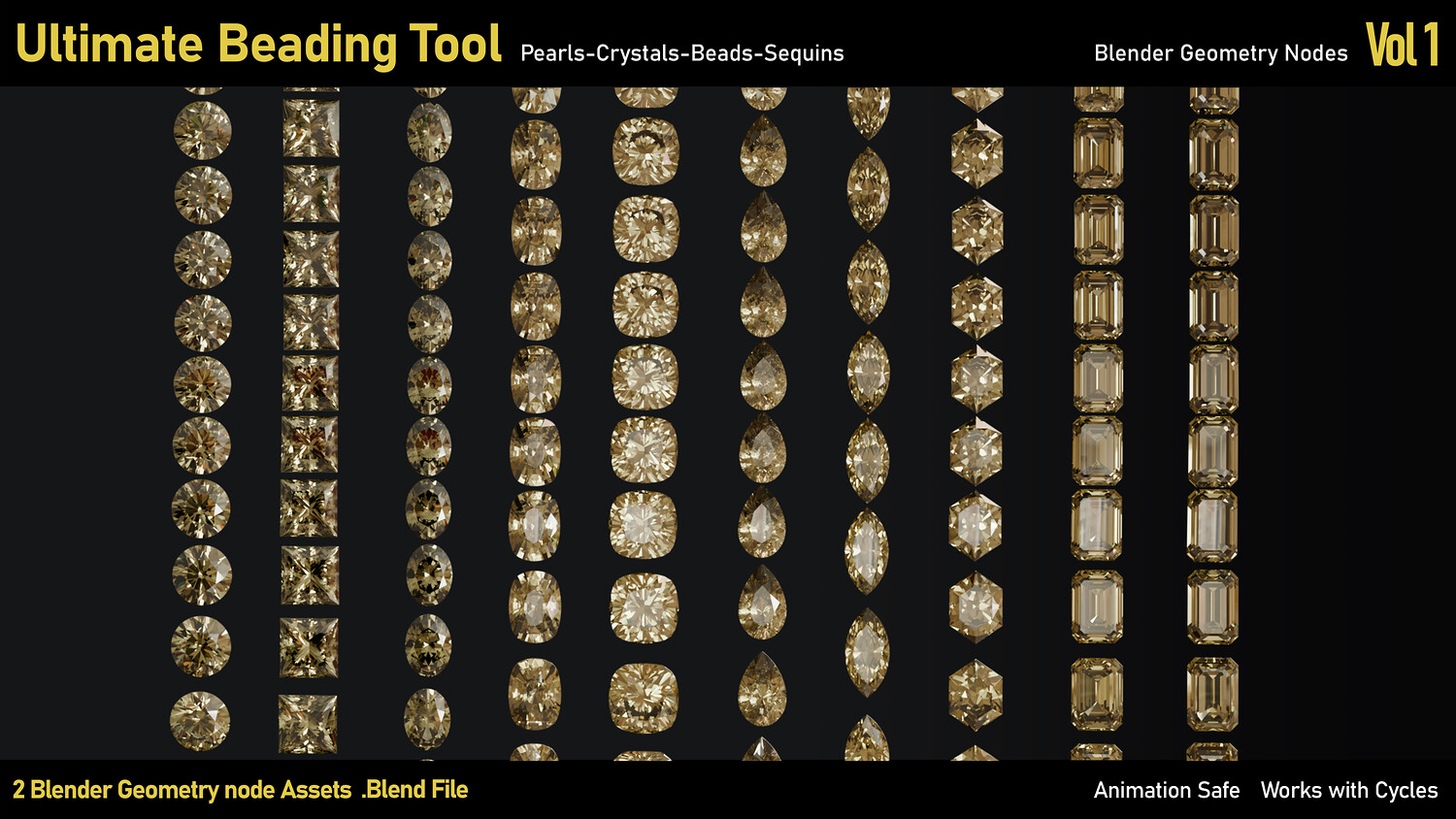
Ultimate Beading Tool-Blender Geometry nodes
Creating Illumination details on digital Garments is never been easier.
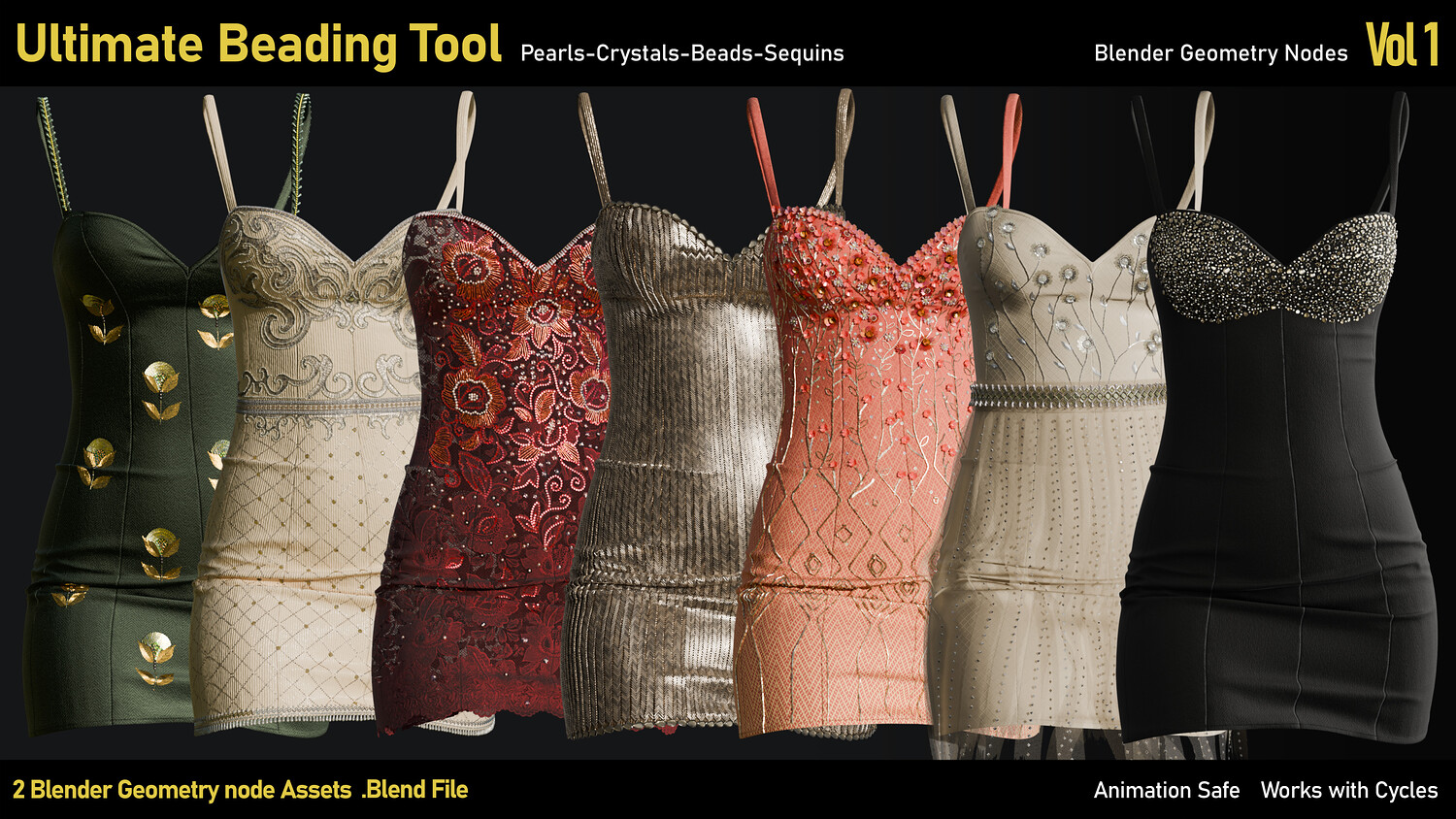
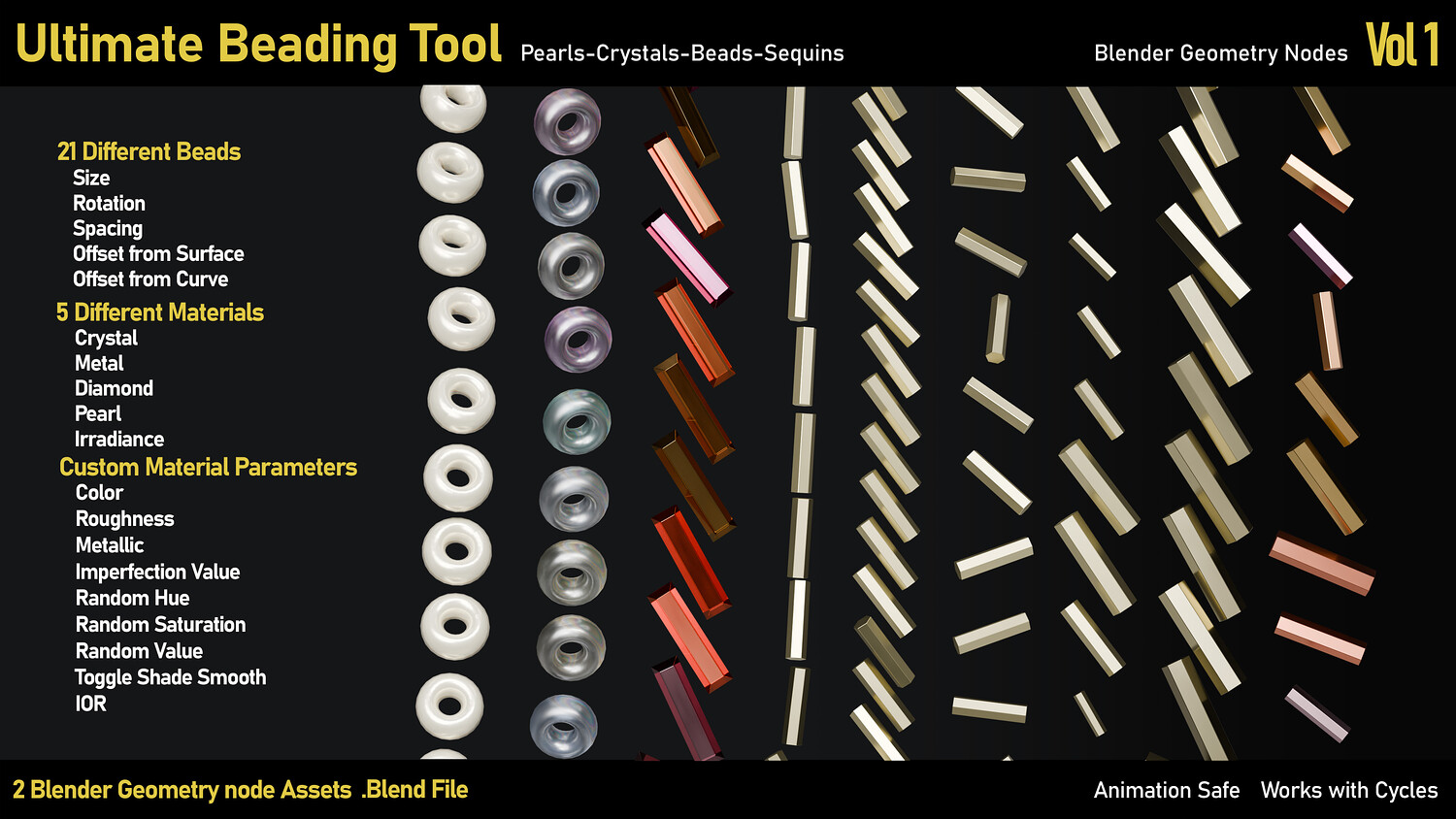
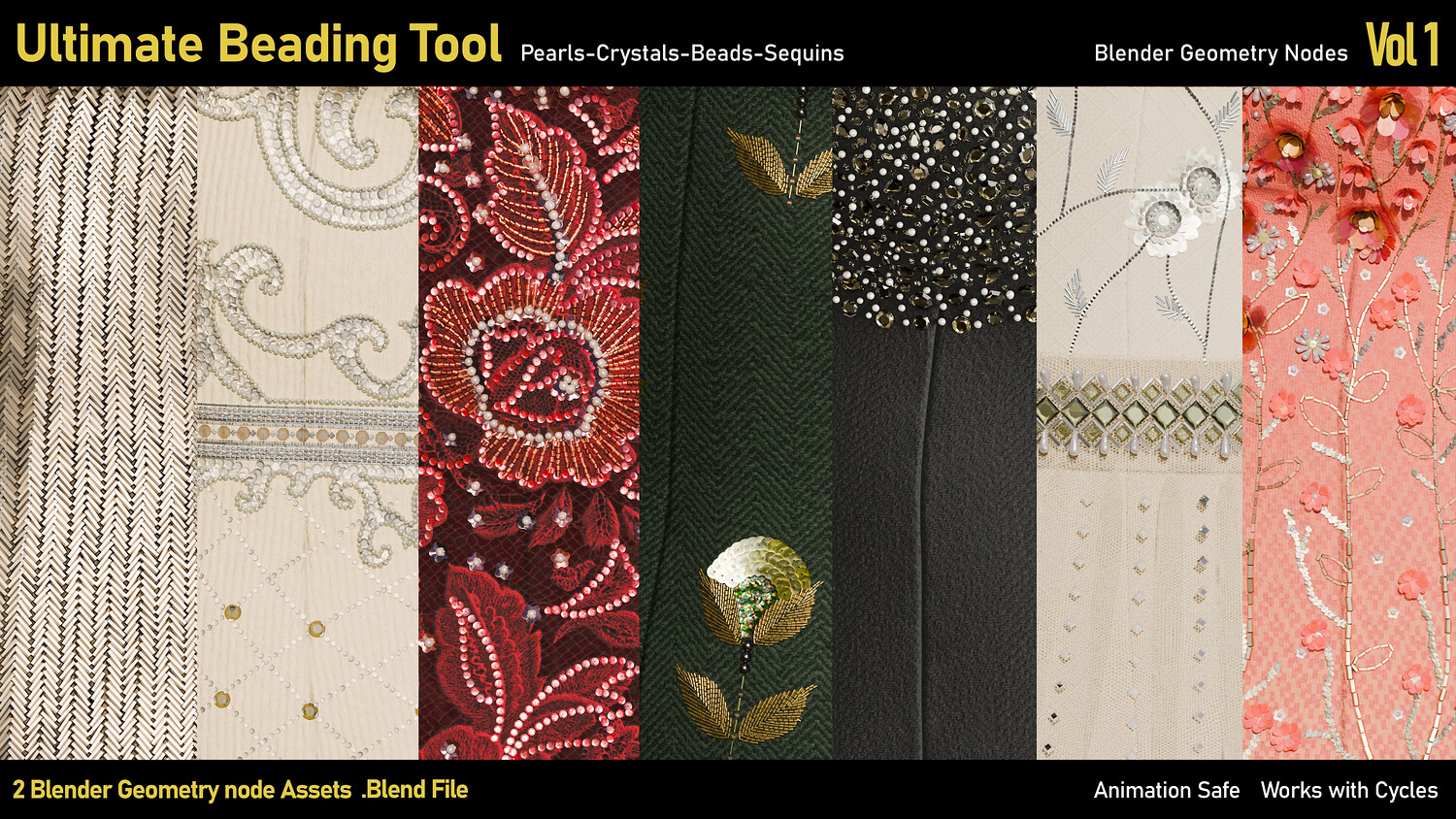
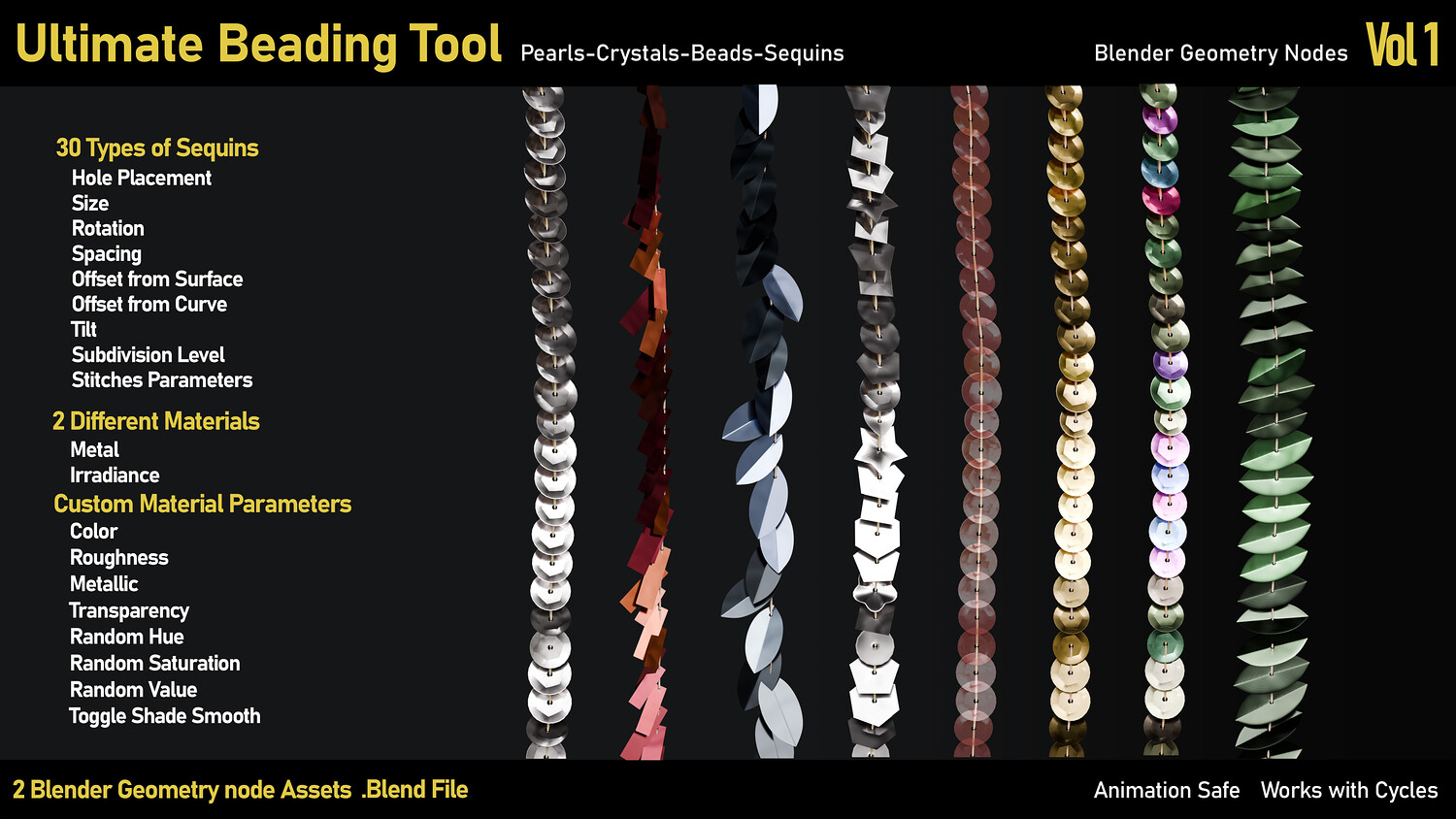
We’re now present our Ultimate beading tool. It’s a package of two tools that covers all your beading needs. You can create beads, crystals, pearls and sequins around any curve or simply by clicking on any surface.
The geometry is light and efficient. You have various shapes and styles. You’re only limited by your creativity and your ability to work with curves in blender. (Blender 5 and above)
You’ll get:
• A blender file “.Blend” contains three assets and a sample preview model
The workflow is pretty straight forward but for better experience please watch the video and read the Tips below, before your first use. https://youtu.be/3O2qKkT64Z4
Important Tips:
• Append the two tools from the “Ultimate beading tool” file’s node trees into your blender file and make sure to uncheck the “Active Collection” option. Then just hide the Appended Data collection in viewport and disable it in renders.
• You can use this tool on any patterns or drawings. It’s just had to be a curve. Just add a Geometry node Modifier and choose one of the tools. Don’t forget to assign your Base Surface. It’s necessary for the tool to get data about Normal and Rotation.
• This tool only works on Curves. So, if you’re using Mesh (or any mesh driven modifiers like surface deform) Check the Convert mesh to curve Checkbox.
• If you want to create single beads or sequins on the surface just use the Draw tool in the curve’s edit mode and click on your surface.
• To avoid troubles around spacing and scales please apply all transforms to your curve before applying the tool or after making any big change to the Scale, Rotation or location.
• If you want to draw more than one curve in one geometry, turn the Stitches off. Or use separate geometries for separate curves. Because the stitches of the previous curve’s last point are going to join to the next curve’s first point.
• The Diamond and pearl materials have fixed parameters in material sections. For more options, please use the Crystal or metal Presets.
• After finishing your design just convert all curves to mesh and join geometries for easier use. (don’t forget to save a copy in case you need to edit the design in Geometry nodes)
• The geometries which are created with Beads, Crystals and pearls tool can get joined together and the geometries which are created with Sequin tool can get joined together without any issues around attributes.
• To bind your design to the animation just use the “Surface Deform” Modifier -for your converted to mesh and joined together geometries- and bind the design to your animation Target’s first frame.
• If you’re using Subdivision surface on your base model, please keep the subdivision level on 1 to have the best and the smoothest result.
Update: Version 1.5
Some bugs in Flatten by UV fixed 23 high-poly crystals added The thickness of the crystals’ metallic bases can now be modified You can add thickness to sequins
You will get 2 files
All files previously purchased will always be available for download in your Library